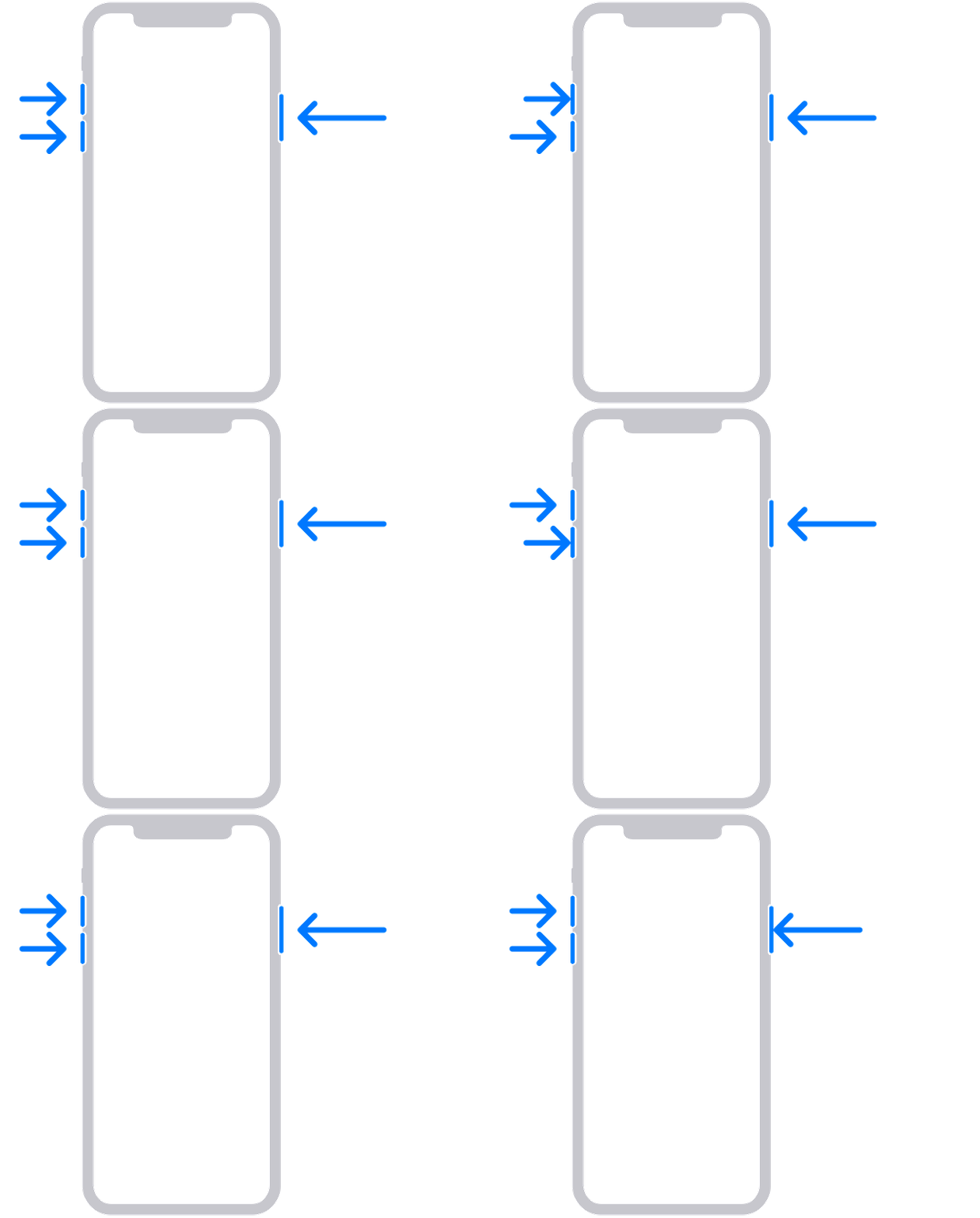
If your iPhone won’t update, won’t restore, is stuck on the Apple logo, or keeps showing the Connect to Computer screen, Recovery Mode is often the correct next step. The exact button sequence depends on the iPhone hardware family, and the restore tool depends on whether you’re using a Mac with Finder, a Windows PC with the Apple Devices app, or an older setup that still uses iTunes.
Official Apple visual references:
-
Recovery/restore screen example: Apple image
Direct Answer Block
To put an iPhone into Recovery Mode, use the button combo that matches its hardware family: iPhone 8 or later uses Volume Up, Volume Down, then hold Side; iPhone 7/7 Plus uses Side + Volume Down; iPhone 6s or earlier uses Home + Top/Side. Keep holding until the Connect to Computer screen appears.
When to Use Recovery Mode
Apple recommends Recovery Mode when your iPhone shows the Apple logo for several minutes with no progress bar, your computer does not recognize the device, the Connect to Computer screen appears, or startup keeps looping into Recovery Assistant without successfully recovering the device. In other words, Recovery Mode is for software recovery when normal startup or normal update paths fail.
For many IPSW.io users, the practical use case is simple: Recovery Mode is the bridge between a non-working iPhone and a fresh restore attempt. It does not choose the firmware for you, but it gives Finder, Apple Devices, or iTunes a state where the device can accept an update or restore.
Requirements Before You Start
Checklist
-
[ ] A Mac with Finder, or a Windows PC with Apple Devices
-
[ ] If needed, iTunes on an older Windows or older Mac setup
-
[ ] A reliable USB or USB-C cable
-
[ ] An internet connection for software download
-
[ ] Enough time for the firmware package to download
-
[ ] A recent backup if you may need to restore
-
[ ] Your Apple ID credentials if Activation Lock may appear afterward
Apple says you should update your Mac or PC first, and if you use iTunes, make sure it is the latest version. Apple also recommends making a backup before a factory restore and turning off Find My for a planned restore if possible.
Warning
A full restore erases the iPhone’s information and settings. Entering Recovery Mode itself does not erase the device, but choosing Restore does.
Quick Compatibility Table: Recovery Mode by iPhone Model
|
iPhone family |
Models covered |
How to enter Recovery Mode |
|
iPhone 8 or later |
iPhone 8, 8 Plus, X, XR, XS, 11, 12, 13, 14, 15, 16 series, iPhone SE 2nd gen and later |
Press Volume Up, press Volume Down, then hold Side button until the Connect to Computer screen appears |
|
iPhone 7 family |
iPhone 7, iPhone 7 Plus |
Hold Side/Top button + Volume Down until the Connect to Computer screen appears |
|
iPhone 6s or earlier |
iPhone 6s, 6, SE 1st gen, 5s and earlier |
Hold Home + Top/Side button until the Connect to Computer screen appears |
This model grouping comes directly from Apple’s Recovery Mode instructions.
How to Enter Recovery Mode on Each iPhone Model Family
iPhone 8 or Later
This applies to the modern button layout used by iPhone 8 and newer, including later iPhone SE models. While the phone is connected to your computer, press and quickly release Volume Up, press and quickly release Volume Down, then press and hold the Side button. Do not release when the Apple logo appears if your goal is Recovery Mode. Release only when the Connect to Computer screen appears.
iPhone 7 and iPhone 7 Plus
Press and hold the Side button and the Volume Down button at the same time. Keep holding until the Connect to Computer screen appears.
iPhone 6s, iPhone SE (1st generation), and Earlier
Press and hold both the Home button and the Top or Side button at the same time. Keep holding until the Connect to Computer screen appears.
How to Exit Recovery Mode
If you only want to leave the restore screen without restoring, Apple says to force restart the iPhone using the model-specific combo and release when the Apple logo appears. That sequence is similar to Recovery Mode, but the release point is different: for exit, you release at the logo; for enter, you keep holding until the recovery screen appears.
Exit Sequences by Model
|
iPhone family |
Exit Recovery Mode |
|
iPhone 8 or later |
Press and quickly release Volume Up, press and quickly release Volume Down, then hold Side until the Apple logo appears |
|
iPhone 7 family |
Hold Side + Volume Down until the Apple logo appears |
|
iPhone 6s or earlier |
Hold Home + Top/Side until the Apple logo appears |
If the recovery screen comes back after restart, Apple says iOS may need to be reinstalled with Update or Restore on your computer.
Finder vs Apple Devices vs iTunes: Which Tool Opens Recovery Mode Restores?
The restore tool depends on your computer, not your iPhone model. On a Mac running macOS Catalina or later, the device appears in Finder. On a Windows PC, Apple directs users to the Apple Devices app. On macOS Mojave or earlier, or on Windows setups still using legacy tooling, iTunes is the fallback.
|
Tool |
Use it when |
Where the iPhone appears |
|
Finder |
Mac with macOS Catalina or later |
Sidebar under Locations |
|
Apple Devices app |
Windows PC |
Device icon in the app sidebar |
|
iTunes |
Older Mac or older Windows workflow |
Device icon in the upper-left area of the window |
For Windows users in Canada, the most current Apple-supported workflow is the Apple Devices app. Apple’s own guide says to connect the device, select it in the sidebar, open General, then choose Restore [device].
What Happens on the Computer After Recovery Mode Is Detected
When the iPhone is correctly in Recovery Mode, Apple says your Mac or PC should show a message that there is a problem with the iPhone and it needs to be updated or restored. If the restore screen remains on the iPhone after restart, Apple recommends trying Update first because it reinstalls iOS while attempting to keep personal data.
If Update fails or the iPhone still won’t boot, you can use Restore, which erases the device and installs software again. Apple states clearly that Restore reinstalls iOS and erases all data.
Recovery Mode with IPSW.io: How It Fits Into Manual Firmware Restores
Recovery Mode is not the firmware file itself. It is the device state that lets your computer communicate with an iPhone that cannot boot normally. If you are restoring manually with an IPSW, Recovery Mode helps the computer detect the device, but success still depends on choosing the correct device identifier, matching the right build number, and using a firmware version that Apple is still signing.
That is where IPSW.io fits into the workflow. Before restoring, verify:
-
your exact iPhone model
-
the correct IPSW for that model
-
whether the target version is still signed
-
whether you are updating, restoring, or attempting a downgrade
When This Works
-
The iPhone buttons still function
-
The computer can detect the iPhone
-
The cable and USB connection are stable
-
The selected IPSW matches the model
-
The firmware is still signed by Apple
When This Won’t Work
-
A required button is broken or stuck
-
The USB path is unstable
-
The target IPSW is no longer signed by Apple
-
The iPhone has deeper hardware faults
-
You are trying to use standard Apple restore tools to install an unsupported build
Apple specifically notes that unsigned-build style errors can appear as “The device isn’t eligible for the requested build” or error 3194, and that some repeated restore failures can point to USB, network, security software, or hardware issues.
Important
Recovery Mode does not bypass Apple’s signing server. If you are downgrading, the target IPSW must normally still be signed in standard Finder, Apple Devices, or iTunes workflows.
What You Lose
If you choose Restore, Apple says your computer erases the device and installs the latest software, removing information and settings. Apple Devices for Windows uses the same factory-reset warning: restoring to factory settings deletes all your information and settings.
What you get back depends on your backup strategy. In practice, you can restore content from an iCloud or computer backup, and some synced data may return after sign-in. For a deeper retention breakdown, link users to the dedicated backup article rather than duplicating that topic here.
What Happens Next
After a successful restore, Apple says the iPhone restarts and eventually shows the Hello screen so you can set it up again. If you restored because of a forgotten passcode or disabled iPhone, that erase is part of the process.
A useful edge case many guides miss: if the software download takes more than 15 minutes, Apple says the iPhone can exit the recovery screen. If that happens, let the download finish, then put the iPhone back into Recovery Mode and continue.
Common Mistakes
1) Releasing at the Apple logo
This is the biggest user error. For entering Recovery Mode, the Apple logo is not the stop point on most models. You keep holding until the Connect to Computer screen appears.
2) Confusing Recovery Mode with a normal force restart
A force restart is what you use to exit the restore screen. Recovery Mode requires holding longer. Apple’s separate instructions for exiting the restore screen make that distinction clear.
3) Using the wrong desktop app
Windows users should usually start with Apple Devices, not legacy iTunes. Mac users on Catalina or later should use Finder.
4) Attempting a restore with the wrong IPSW
If the firmware file does not match your exact model or Apple is no longer signing that build, the restore can fail even if Recovery Mode itself works.
5) Ignoring cable and USB quality
Apple recommends connecting directly to the computer’s USB port, not a keyboard or hub, and trying another Apple-certified cable, port, or even another computer if restore errors continue.
Common Restore Errors After Entering Recovery Mode
|
Error |
Usually means |
First thing to check |
|
3194 |
The computer cannot connect properly to Apple’s software update servers, or the requested build is not eligible |
Signing status, Apple server access, security software |
|
4013 / 4014 |
Update/restore failure often tied to USB path, repeat failure, or possible hardware conditions |
Cable, USB port, computer, retry update/restore |
|
“Device isn’t eligible for the requested build” |
The firmware you are trying to install is not allowed in the current restore path |
Correct IPSW, signing status |
Apple groups 3194 with connection-to-server or build-eligibility problems, and says 4013/4014 may require retrying the update plus checking USB and related hardware conditions.
Recovery Mode vs DFU Mode
Recovery Mode is the standard Apple-supported escalation step when a normal update or restore fails. It is visible on-screen because the iPhone shows the Connect to Computer display. DFU Mode is deeper and more specialized, and it belongs on a separate page because it serves a different troubleshooting intent.
For most IPSW.io readers, the right sequence is:
-
Try a normal update or restore
-
Use Recovery Mode if the device won’t boot or isn’t recognized
-
Only research DFU Mode if Recovery Mode does not solve the issue and you understand the added risk and complexity
This framing helps the article support the broader restore pillar without competing with a dedicated DFU comparison page.
Real-World Scenarios Competitors Often Miss
Failed beta exit
If you are leaving an iOS beta, Recovery Mode can help your computer detect the iPhone for restore, but the downgrade still depends on a signed stable IPSW. Recovery Mode alone does not make an unsigned downgrade possible.
Passcode lockout edge case
Apple notes that iOS 15.2 or later may let users reset a forgotten passcode on-device without a computer. That means Recovery Mode is not always the first answer for passcode lockouts on newer configurations.
Broken button limitation
If a required button is stuck or non-functional, Apple says you may need service because you may not be able to enter Recovery Mode at all.
Recovery screen loop after restart
If the restore screen keeps returning, Apple says you may need to reinstall iOS or iPadOS using Update first, then Restore if necessary.
Conclusion
Recovery Mode is not one universal iPhone button trick. It is a model-family-specific workflow that also depends on the right desktop app: Finder on modern Macs, Apple Devices on Windows, and iTunes only on older setups. For IPSW.io, this page should act as the fast-reference entry point: get the iPhone into Recovery Mode correctly, then move users into the right signed IPSW, restore, downgrade, or troubleshooting path.
11. FAQ Section
1) How do I put an iPhone into Recovery Mode?
Use the button combo for your hardware family: iPhone 8 or later uses Volume Up, Volume Down, then hold Side; iPhone 7/7 Plus uses Side + Volume Down; iPhone 6s or earlier uses Home + Top/Side. Release only when the Connect to Computer screen appears.
2) How do I exit Recovery Mode on iPhone?
Force restart using the model-specific button combo and release when the Apple logo appears. If the restore screen returns, iOS may need to be updated or reinstalled.
3) Does Recovery Mode erase everything?
No. Entering Recovery Mode does not erase the iPhone. Choosing Restore on the computer does erase the device and reinstall iOS.
4) Should I use Finder, Apple Devices, or iTunes?
Use Finder on macOS Catalina or later, Apple Devices on Windows, and iTunes on older Mac or Windows environments where Apple Devices is not the active workflow.
5) Can I use Recovery Mode to fix an iPhone update that failed?
Yes. Apple recommends Recovery Mode when an iPhone cannot update or restore normally, shows the Apple logo for too long, or is not recognized by the computer.
6) Can I downgrade iOS using Recovery Mode?
Recovery Mode can start the restore process, but the downgrade still depends on the target IPSW being signed by Apple. If the build is no longer signed, normal restore tools will not install it.
7) Why does my iPhone exit Recovery Mode during restore?
Apple says that if the software download takes more than 15 minutes, the iPhone can leave the recovery screen. Let the download finish, then put the iPhone back into Recovery Mode.
8) What does error 3194 mean during an iPhone restore?
Apple associates 3194 with an inability to connect properly to Apple’s software update servers or with a build-eligibility problem such as requesting firmware the device cannot install.
9) What do errors 4013 and 4014 usually mean?
Apple groups 4013 and 4014 with update-or-restore failures and points users to retry the update plus check the cable, USB port, computer, and possible hardware conditions.
10) What if my iPhone doesn’t appear on the computer?
Apple says the device should appear in the Finder sidebar, the Apple Devices sidebar, or as an icon in iTunes. If it does not, check the cable, unlock the device if possible, trust the computer, and try another USB path.
11) Can Recovery Mode bypass Activation Lock?
No. Recovery Mode can erase and reinstall software, but it does not remove Activation Lock. If the iPhone is still linked to an Apple ID through Find My, that Apple ID is still required during setup.
12) What if I forgot my passcode?
Apple notes that if the iPhone is on iOS 15.2 or later, you may be able to reset the passcode on-device without a computer. On earlier setups, Recovery Mode restore may be required.