Downgrade iOS 26: Current Options, Signing Status, and Limits
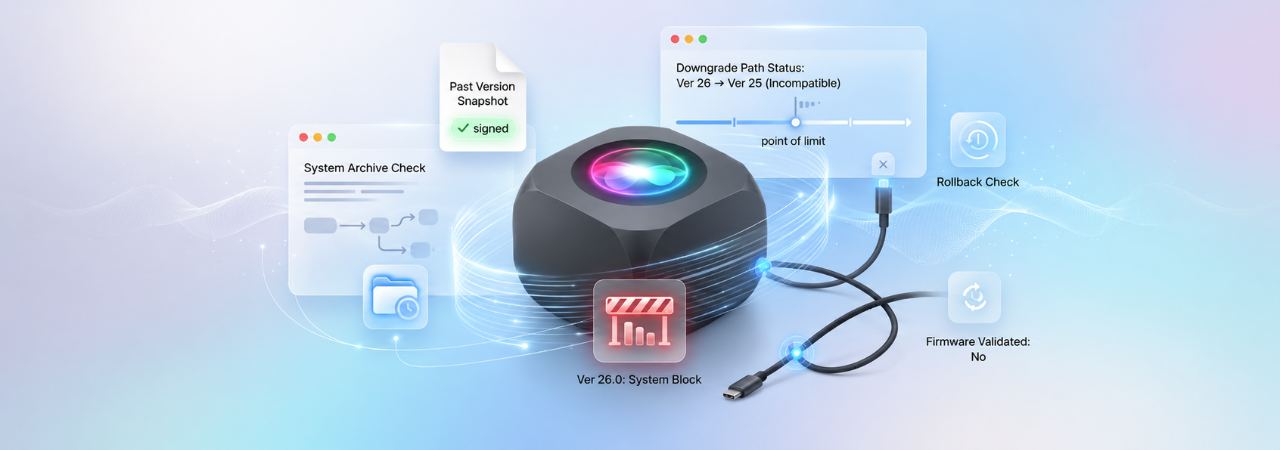
If you are trying to downgrade iOS 26, the first question is not how to do it. It is whether Apple still allows it for your exact device and target build. On modern iPhone and iPad restore workflows, downgrade success depends on signing status, firmware compatibility, and backup availability much more than on the restore app you use.
Direct Answer: Yes, you can downgrade iOS 26 only in limited cases. In practice, it works when Apple is still signing the target firmware for your exact device, or when you are leaving a beta by erasing and restoring to the current public release. If the IPSW is unsigned, a normal restore downgrade will not work, and your device data is usually erased in the process.
Why Downgrade Attempts Succeed or Fail
The main rule is simple: signed IPSW files can be restored; unsigned IPSW files cannot currently be restored to. That is the operational limit most downgrade guides miss. IPSW listings also show that signing is version-specific and device-specific, so a build that works for one model or one week may not work for another.
Apple's own restore documentation reinforces the same reality from the other side. When you restore an iPhone or iPad with Finder, the Apple Devices app, or iTunes, the device is erased and software is reinstalled. If the requested build is not eligible, restore attempts can fail with messages such as "The device isn't eligible for the requested build" or error 3194.
Current Downgrade Reality
Right now, the downgrade story around iOS 26 is usually one of these four scenarios:
| Scenario | Usually possible? | Main condition | Main limitation |
|---|---|---|---|
| Leave iOS 26 beta and return to current public release | Yes | You restore to Apple's current public release | Device is erased |
| Move from iOS 26.x to an earlier still-signed 26.x build | Sometimes | Apple must still sign that exact target build for your exact model | Window can close anytime |
| Go from iOS 26 to iOS 18.x | Usually no | Apple would need to still sign an older compatible iOS 18 build | In most cases, old public versions are unsigned |
| Restore to an unsigned IPSW | No | Not supported in a normal restore path | Finder / Apple Devices / iTunes will reject it |
Current IPSW listings show how narrow those windows are. For example, a given iPhone model page may list iOS 26.6 and iOS 26.5.2 as signed, while older versions are separated into an unsigned list.
When This Works
1. You installed a beta and want the current public release
Apple explicitly says you can remove beta software by erasing and restoring the device to the current public version of iOS or iPadOS. That is the cleanest official exit path when you do not want to wait for the next public update cycle.
2. Apple is still signing a slightly older 26.x build
This is the version-specific downgrade path most users are actually looking for. If your device page still shows the target IPSW as signed, a restore to that build may still be possible. This is why a live signing checker matters more than a generic downgrade tutorial.
3. You are troubleshooting a bad update, not chasing a very old version
Sometimes users do not need to go "back" very far. They only need to leave a problematic build for another still-signed release in the same family. That is a much more realistic goal than trying to jump from iOS 26 all the way back to an older iOS 18 release.
When This Won't Work
1. The target IPSW is unsigned
This is the hard stop. If the firmware is unsigned, normal restore tools reject it.
2. You only have a backup from the newer OS
Apple says backups created on beta or newer software may not work with earlier versions of iOS or iPadOS. So even if you successfully restore an older build, your latest backup may not come back with you.
3. You expect a no-erase downgrade
Apple's supported restore path erases the device. "Downgrade without data loss" is usually the wrong expectation for current iPhone and iPad restore workflows.
Warning: If your priority is keeping current on-device data, stop before restoring. First verify whether you have an older compatible backup. A successful firmware restore does not guarantee a usable post-downgrade data restore.
Requirements Before You Start
- Confirm your exact device identifier
- Confirm the exact target build number
- Check whether Apple is still signing that build
- Make a fresh backup anyway, even if it may not restore backward
- Check whether you also have an older archived backup
- Update macOS, the Apple Devices app, or iTunes first
- Use a known-good USB cable and reliable USB port
- Make sure you know your Apple Account credentials in case Activation Lock appears after restore
The Restore Path Apple Supports
If your goal is to get off a beta or recover a device that will not update or restore normally, Apple's documented path is Recovery Mode restore. When Recovery Mode presents Update or Restore, choosing Restore reinstalls iOS and erases all data.
On current platforms, Apple directs users to:
- Finder on modern macOS
- Apple Devices on Windows
- iTunes on older Windows workflows or older macOS setups
What You Lose
- Device data — restore erases the device in Apple's normal workflow.
- Backup compatibility — a backup made on newer or beta software may not restore to the older system you just installed.
- Convenience — you may need to re-activate, re-pair accessories, and reconfigure apps, settings, and Apple Wallet items after setup.
- Time — if the firmware download takes longer than expected, Apple says the device may exit recovery mode and you may need to re-enter it and repeat the process.
What Happens Next After a Downgrade Restore
After restore, your iPhone or iPad restarts and setup begins again. At that point, one of three things usually happens:
- You restore from an older compatible backup
- You set up as new because your newer backup is not backward-compatible
- You get blocked by Activation Lock until you authenticate with your Apple Account
That post-restore reality is why downgrade planning is not only about signing. It is also about backup age, account access, and restore viability.
Common Mistakes That Block iOS 26 Downgrades
Mistake 1: Checking only the iOS version, not the device page. Signing is device-specific. The smarter workflow is to verify the exact device page, not just a version page.
Mistake 2: Treating beta removal and full historical downgrade as the same thing. Leaving a beta for the current public version is often possible. Going back several major or minor versions is much more restricted.
Mistake 3: Ignoring error messages. Apple ties 3194 and "device isn't eligible" messages to connectivity or signing/eligibility problems. It ties 4013 and 4014 more often to USB, connection, or hardware-related restore issues.
Mistake 4: Assuming SHSH blobs solve modern consumer downgrade workflows. For most readers, the practical path is still the same: check live signing status, use the correct IPSW, and restore within Apple's allowed window.
Restore Errors to Watch For
| Error / message | What it usually means | First check |
|---|---|---|
| Error 3194 / "device isn't eligible for requested build" | Signing, eligibility, or Apple-server connection problem | Is the target build still signed? Is security software blocking Apple servers? |
| Error 4013 / 4014 | USB, cable, port, computer, or hardware-related restore issue | Change cable, port, or computer and retry |
| Error 1015 / "required resource can't be found" | Possible downgrade attempt to unsupported build or unauthorized software modification | Try recovery mode restore to latest supported software |
Apple's documented troubleshooting steps include updating your Mac, Apple Devices app, or iTunes, checking security software, and retrying with a different USB cable, USB port, or computer.
Warning: If repeated restore attempts fail with the same hardware-leaning errors, do not keep force-retrying random IPSWs. Move to cable, port, computer, and hardware isolation first.
The Version-Specific Reality
Most downgrade content on the web is too generic. The better answer is more precise:
- Signing windows are short
- Signed vs unsigned matters more than tutorial length
- Beta exit and downgrade are related but not identical
- Backup compatibility is often the real blocker
- A "successful restore" does not always mean a successful rollback experience
FAQ
Can you downgrade from iOS 26 to iOS 18?
Only if Apple is still signing a compatible iOS 18 build for your exact device. If the target IPSW is unsigned, a normal downgrade restore will not work. See Signed IPSW for iOS 18: What Is Still Installable for the full breakdown of when iOS 18 is and isn't signed.
Can you leave the iOS 26 beta without waiting for another update?
Yes. Apple says you can erase and restore the device to the current public release, but the process wipes the device.
Does downgrading iOS 26 erase your iPhone?
Usually yes. Apple's restore workflow reinstalls software and erases device data.
Can you downgrade iOS 26 without losing data?
You should not plan on it. Restore typically erases the device, and newer backups may not be compatible with older iOS versions.
How do you know if Apple is still signing a version?
Check a current signing-status source by exact device model and exact build. Signed IPSWs can be restored; unsigned IPSWs cannot.
What tools can restore a signed IPSW?
Finder, the Apple Devices app, iTunes, and idevicerestore are restore tools for signed IPSWs.
What does error 3194 mean during downgrade attempts?
Apple associates it with Apple-server connectivity, security software interference, or an ineligible requested build. It is a common sign that the target firmware is not currently restorable.
What do errors 4013 and 4014 mean?
Apple says these usually require checking the USB cable, USB port, computer, or related hardware conditions.
Can a backup made on iOS 26 restore to an older iOS version?
Often no. Apple says backups created on beta or newer software might not work with earlier versions.
Is Recovery Mode required for every downgrade?
Not always, but it is Apple's documented path when the device cannot update or restore normally, when it is stuck, or when you are removing beta software through a full restore.
Why is Activation Lock relevant after restoring?
After erase and restore, setup may require your Apple Account credentials. Apple also provides a web method to remove Activation Lock from a device you own.
Is iTunes still relevant for iOS restores?
Yes, for some Windows users and older workflows. Apple still documents iTunes as a restore path where Apple Devices is not being used.
Conclusion
If you want to downgrade iOS 26, think in this order: target build, signing status, backup compatibility, restore path, then troubleshooting. For most users, the best-case scenario is either leaving a beta for the current public release or restoring to another still-signed 26.x build. A jump back to much older releases usually fails because Apple stops signing them, and even a working restore can still leave you without a usable backup.


