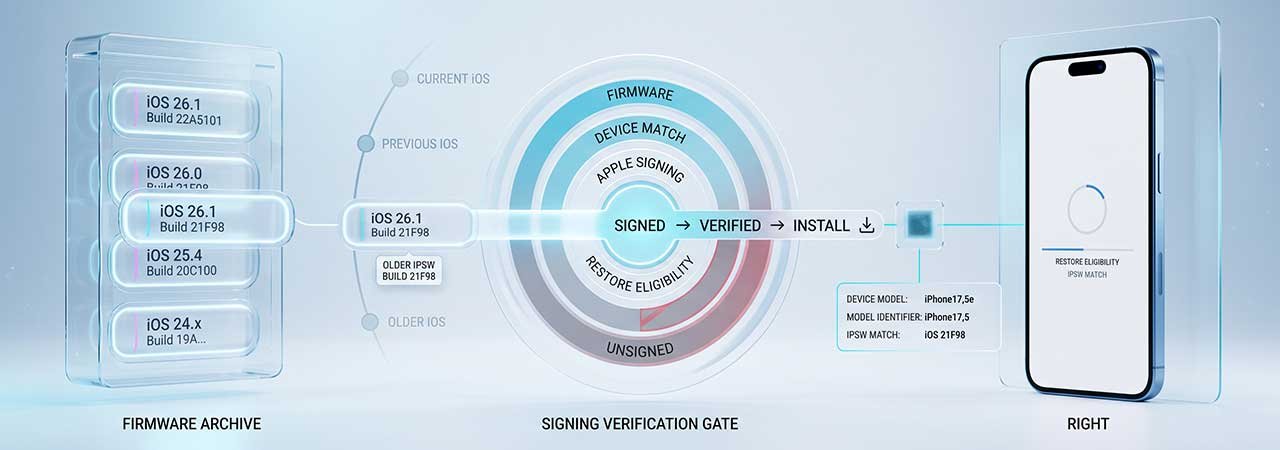
The honest answer to "how do I download iOS 9" or "how do I get iOS 13" is: the IPSW file itself almost certainly still exists, but whether you can actually install it on a device depends entirely on one thing — whether Apple is still signing that specific build for your specific device. For the large majority of old versions, the answer is no. That does not mean the file is useless, but it does mean "download" and "install" are two separate questions.
What "Signed" Actually Controls
Every iOS restore or update goes through Apple's signing servers for verification. Apple keeps a rolling window of signed builds open — typically the current release, and sometimes one version back — and closes older windows permanently as new ones open. Once a build's signing window closes, a standard restore through Finder, the Apple Devices app, or iTunes will reject it, even with a perfectly valid file in hand. This applies uniformly across versions; there is no version number below which this stops being true.
What Is and Isn't Possible
- Downloading the file: Almost always possible. Old IPSW files are typically archived and remain downloadable regardless of signing status.
- Installing it on your device today: Only possible if Apple is still signing that exact build for your exact device identifier — not just the version number, the specific hardware.
- Downgrading to an older version you're nostalgic for: Rarely possible unless it happens to fall inside the current signing window, which is usually very recent.
- Using the file for something other than a live restore (research, jailbreak tooling on supported versions, emulation, forensics, or archival purposes): Often legitimate and doesn't require current signing.
How to Check Before You Try
Do not assume based on how old the version is — check directly. Our signing status guide explains exactly how to verify whether a specific build is currently signed for your device before you spend time on a restore that will fail partway through.
Where to Actually Find the File
Rather than searching by iOS version number alone, start from your specific device. Each of our device firmware guides lists every identifier for that model along with its current and historical builds:
- iPhone 16 Firmware
- iPhone 15 Firmware
- iPhone 14 Firmware
- iPhone 13 Firmware
- iPhone 12 Firmware
- iPhone 11 Firmware
- iPhone X, XR & XS Firmware
- iPhone 8 Firmware
- iPhone 7 Firmware
- iPhone 6, 6s & 6s Plus Firmware
- iPhone SE Firmware
For a full picture of major release history and build numbers across versions, see our iOS version history reference — note that it documents release history, not current installability, which is exactly the distinction this article is about.
Older iOS Download FAQ
Can I download iOS 9, iOS 13, or another old version right now?
The file itself, usually yes. Whether you can install it depends on whether Apple currently signs that build for your device — check before assuming either way.
Why would Apple stop letting me install an old version I already downloaded?
Signing isn't about the file changing; it's about server-side authorization. Apple can revoke that authorization for a build at any time, independent of the file's integrity.
Is there any way to install an unsigned build anyway?
Not through a standard restore via Finder, Apple Devices, or iTunes. Workarounds exist in narrow, device-specific cases (like SHSH blob-based downgrades) but are outside the scope of a standard restore.
If I can't install it, why would I download an old IPSW at all?
Legitimate reasons include research, tooling development, forensic analysis, and archival purposes — none of which require the build to be currently signed.


