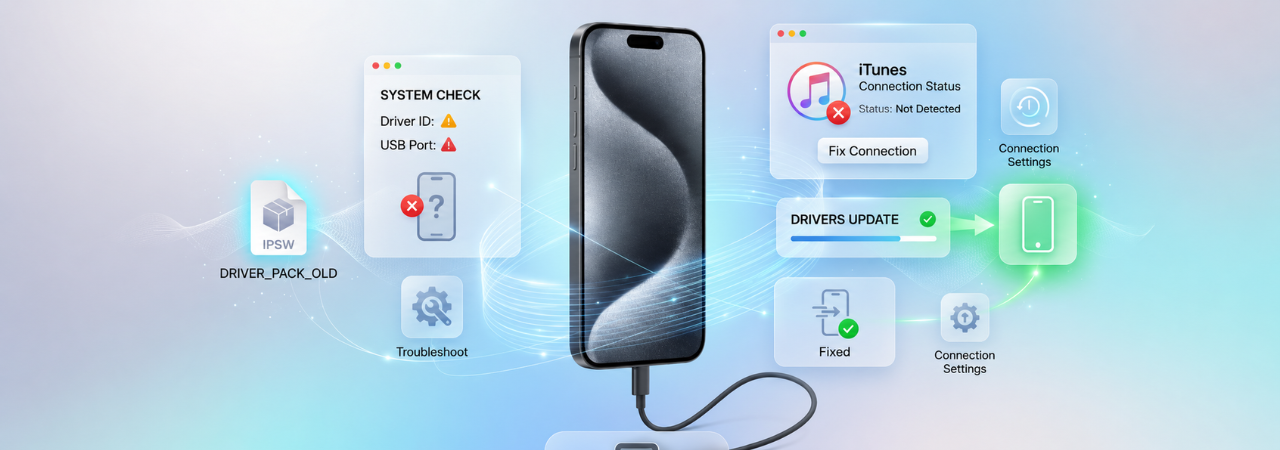
Why iTunes Won't Recognize Your iPhone: Driver and Connection Fixes
If your iPhone does not appear in iTunes, the Apple Devices app, or Finder, the issue is usually not the firmware file itself. In most cases, the break happens earlier in the chain: the USB connection, the trust handshake, the Windows driver layer, or Apple's background device service. Fixing that recognition path first is what makes backup, update, restore, and IPSW workflows possible again.
Direct Answer: If iTunes is not recognizing your iPhone, the most common causes are a bad or charge-only USB cable, a failed Trust This Computer prompt, an outdated Apple app or Windows driver, or a stalled Apple Mobile Device Service on Windows. Start by unlocking the iPhone, reconnecting it directly to the PC, switching cables and ports, then restart AMDS and update Apple software before attempting a restore.
Before You Troubleshoot: Use the Right Apple App
The first question is not "Is my iPhone broken?" but "Am I looking in the right app?" On macOS Catalina or later, you manage the iPhone in Finder. On Windows, Apple directs users to the Apple Devices app, while iTunes remains relevant for older workflows and older setups.
| Your computer | Main app to check | What you should see |
|---|---|---|
| macOS Catalina or later | Finder | Device name in Finder sidebar |
| macOS Mojave or earlier | iTunes | Device icon in upper-left area |
| Windows PC | Apple Devices app | Device icon in sidebar |
| Windows PC without Apple Devices app | iTunes | Device icon in iTunes window |
Requirements Before You Start
Before you do anything advanced, confirm these basics:
- Your iPhone is unlocked
- The screen is on
- You can accept Trust This Computer
- The cable supports data and charging, not charging only
- The phone is connected directly to the computer, not through a keyboard or weak USB hub
- Windows, iOS, and Apple software are reasonably current
Step 1: Fix the Simplest Failure — Cable, Port, and Physical Connection
A surprising number of "iTunes not recognizing iPhone" cases are really USB data-path failures. A cable can still charge the iPhone while failing to carry reliable data. That is why "my iPhone charges but does not show in iTunes" is such a common pattern.
Apple's checklist is straightforward: try another cable, use one that supports both data and charging, switch USB ports, and try another computer if needed. For update or restore problems, Apple also says to plug the device directly into the computer's USB port rather than into an attached keyboard or hub.
When This Works
- the iPhone charges but never appears in iTunes or Apple Devices
- the device appears intermittently
- the problem started after changing cables, docks, or USB hubs
- restore attempts fail with unstable connection symptoms
Common Mistake
Users often keep testing the same suspect cable across different ports. Swap one variable at a time: new cable → different direct USB port → different computer. That isolation pattern helps you tell a cable issue from a driver issue much faster.
Step 2: Resolve the Trust This Computer Handshake
Even if the physical USB link is good, Apple still requires a trust handshake before the computer gets full access to the device. Apple says that when you connect the iPhone, you may need to unlock it, select the device in Finder or Apple Devices, click Trust, and then confirm Trust on the iPhone itself. If you previously tapped Don't Trust, or the prompt no longer appears, reset Location & Privacy to trigger the prompt again.
How to Reset the Trust Relationship
On iPhone: Settings > General > Transfer or Reset iPhone > Reset > Reset Location & Privacy
Apple also says that if the prompt still fails, you should disconnect and reconnect the device, restart both the computer and the iPhone, and if needed reset network settings.
Warning: Reset Network Settings also clears saved Wi-Fi networks, passwords, VPN settings, and APN settings. Use it only if earlier steps fail.
Step 3: On Windows, Restart Apple Mobile Device Service (AMDS)
If you are on Windows and the cable and trust prompt are fine, the next likely failure point is Apple Mobile Device Service. Apple says AMDS may need to be restarted if your iPhone is not recognized in iTunes on Windows or if you see a message saying the Apple Mobile Device Service is not started.
How to Restart AMDS
- Close iTunes and disconnect the iPhone.
- Press Windows + R, type
services.msc - Find Apple Mobile Device Service
- Open Properties, set Startup type to Automatic
- Click Stop, then click Start
- Restart the PC
- Reopen iTunes and reconnect the iPhone
Apple also notes that if AMDS will not start or stops unexpectedly, third-party security software may be interfering.
When This Works
- the phone used to be recognized, then suddenly stopped
- iTunes opens normally, but no device appears
- Windows sees something connected, but Apple software does not
- restore or backup workflows fail before device enumeration completes
Step 4: Update the Driver and Apple Software Layer
Apple's main recognition guide for Windows explicitly says to update iTunes, update Apple software for Microsoft Windows, and update drivers through Device Manager when the computer still does not recognize the iPhone. Apple also says to make sure you are using the latest version of Windows and the latest version of iOS or iPadOS.
Windows recognition is not just one app. It is a chain:
- USB hardware connection
- Windows device detection
- Apple driver layer
- Apple background services
- iTunes or Apple Devices app UI
If any layer is stale or corrupted, the iPhone may charge but fail to appear in the app.
What This Won't Fix
Driver updates will not fix a physically damaged Lightning or USB-C port, a stuck button that prevents recovery mode when needed, or deeper hardware instability that later surfaces as restore errors like 4013 or 4014. Apple says persistent failures after standard connection, software, and recovery attempts may require service.
Step 5: If Recognition Fails Right Before a Restore, Don't Jump Straight to Erase
Apple's restore guidance says that if a restore or update is failing, you should first make sure the Mac, Apple Devices app, or iTunes is up to date, then connect the device, locate it on the computer, and prefer Update before Restore when possible. Apple's error 9/4005/4013/4014 guidance specifically says to click Update — not Restore — first in order to reinstall software while keeping personal data when possible.
What Happens Next If the Phone Is Finally Recognized
- make a local backup first if the device is stable
- if the goal is repair, try Update
- if the goal is a clean reinstall and data loss is acceptable, then Restore
- if the workflow involves IPSW, confirm device model and signing status before proceeding
Step 6: Use Recovery Mode If the iPhone Only Appears When Normal Detection Fails
If the iPhone is stuck on the Apple logo, shows the Connect to computer screen, repeatedly boots into recovery, or the computer says the device is in recovery mode, Apple says recovery mode may be required. On PC, Apple tells users to use the latest Apple Devices app or iTunes, connect the device, enter recovery mode for the correct model, then choose Update or Restore.
Recovery Mode Is Relevant When
- the phone is not booting normally
- the computer detects only a recovery-state device
- update or restore previously failed
- you are already in a pre-restore repair workflow
Recovery Mode Is NOT the First Fix When
- the iPhone works normally but never prompts trust
- the cable is suspect
- the Apple app layer is outdated
- AMDS is not running
Connection Problems Often Become Restore Errors Later
Recognition failures often show up earlier than restore errors, but they are part of the same chain. Apple's restore error documentation ties several update and restore failures directly to USB path quality, unstable computer-device communication, and software state:
- Apple says errors 4005, 4013, and 4014 should prompt you to try updating again and to check USB connection, cable, port, or computer.
- Apple's dedicated page for errors 9, 4005, 4013, and 4014 says the device may have disconnected during update/restore, and recommends updates, force restart, another cable, and another computer.
If your end goal is an IPSW restore, fix recognition first. Otherwise, you often move from "device not showing up" to "unknown error occurred (4013)" without ever solving the actual root cause.
Symptoms and Likely Fix Path
| Symptom | Most likely layer | Best first move |
|---|---|---|
| iPhone charges but does not appear | Cable or USB data path | Try another data-capable cable and port |
| Trust prompt never appears | Trust handshake | Reset Location & Privacy, reconnect |
| Device used to appear, now doesn't | AMDS or driver layer | Restart AMDS, reboot PC |
| Apple Devices/iTunes outdated | Software layer | Update app, Windows, iOS |
| Appears only in recovery mode | OS/device state | Use recovery mode, try Update first |
| Restore fails with 4013/4014 | Connection or hardware instability | Recheck cable, port, computer, then recovery workflow |
Best Practice Checklist Before Any IPSW Restore or Downgrade
- Confirm the iPhone appears in Finder, Apple Devices, or iTunes
- Use a known-good data cable
- Avoid keyboard USB ports and flaky hubs
- Complete the Trust This Computer prompt
- Update Windows or macOS
- Update iOS if possible
- Restart Apple Mobile Device Service on Windows if detection fails
- Create a backup before attempting restore
- Check signing status before using an IPSW
- Keep recovery mode steps ready in case the device exits normal mode
FAQ
Why is my iPhone charging but not showing up in iTunes?
Because power and data are not the same thing. Apple says to try another cable and make sure it supports both data and charging, then switch USB ports or computers.
Do I still need iTunes on Windows?
Not always. Apple says many Windows users should use the Apple Devices app to manage, back up, update, or restore an iPhone, while iTunes remains relevant in some older workflows.
How do I make the Trust This Computer prompt appear again?
Reset Location & Privacy on the iPhone, then reconnect it. Apple also recommends restarting both devices and reconnecting if the prompt still does not appear.
What is Apple Mobile Device Service?
It is a Windows service Apple uses so its software can communicate with connected iPhones, iPads, and iPods. If it is not started, Apple says the device may not be recognized in iTunes.
How do I restart Apple Mobile Device Service?
Open services.msc, find Apple Mobile Device Service, set it to Automatic, stop it, start it again, then reboot the PC.
Should I restore my iPhone immediately if it isn't recognized?
Usually no. Fix the recognition issue first. Apple's restore guidance prefers getting the device detected, then trying Update before Restore when possible.
Can bad USB connectivity cause restore errors like 4013 or 4014?
Yes. Apple explicitly ties errors 4005, 4013, and 4014 to connection and communication failures, and tells users to check cable, USB port, and computer.
What if my iPhone only appears in recovery mode?
That usually means the normal boot path is failing. Apple says to use recovery mode with Finder, Apple Devices, or iTunes and then choose Update or Restore.
Can security software stop iTunes from seeing my iPhone?
Yes. Apple mentions software conflicts in its recognition guide and specifically notes that third-party security software can interfere with AMDS.
Why does this matter before using an IPSW?
Because if the computer cannot reliably recognize the device, restore, update, downgrade, and backup workflows are unstable before they even begin. Connection issues often become restore errors later.
Conclusion
If iTunes is not recognizing your iPhone, treat it as a connection stack problem, not just an app glitch. Start with the cable and port, confirm the trust handshake, then fix the Windows service and driver layer. Only after the device appears reliably should you move into backup, update, restore, recovery mode, or IPSW-based troubleshooting. That sequence saves time, reduces data-loss risk, and prevents many of the restore errors that show up later in the repair process.


