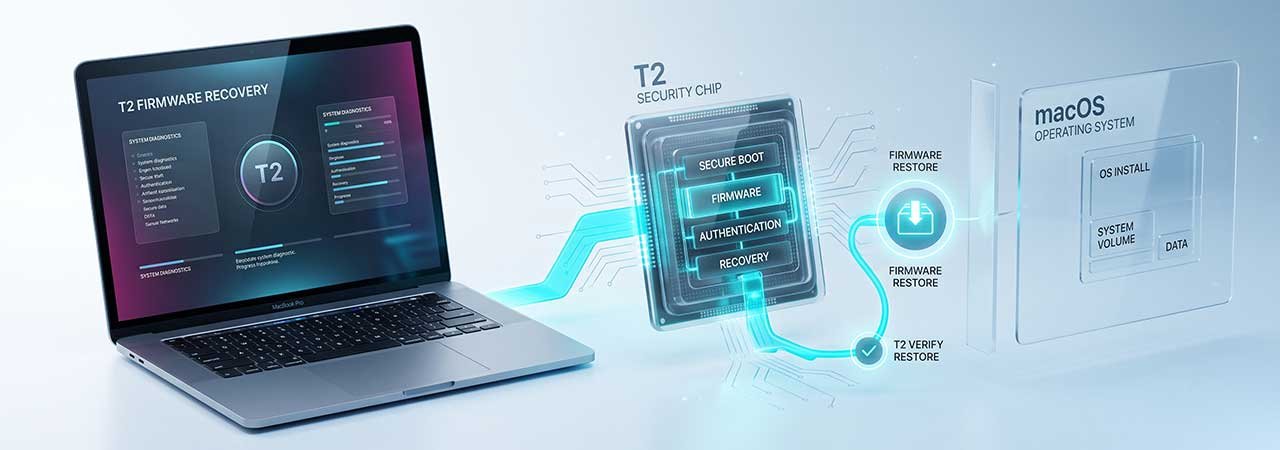
If you have put an Intel Mac with a T2 chip into DFU mode, run a restore in Apple Configurator, and ended up staring at a spinning globe on an empty machine, nothing has gone wrong. That is what a T2 restore is supposed to do — and it is the single biggest difference between restoring a T2 Mac and restoring an Apple Silicon Mac.
For the Apple Silicon procedure, see Apple Silicon Mac DFU Restore: Revive vs Restore. You can browse firmware for every Mac model from the Mac firmware page.
Direct Answer: A DFU restore on a T2 Intel Mac restores the T2 firmware and erases internal storage, but it does not install macOS. When it finishes, the Mac starts up into macOS Recovery over the internet — the spinning globe — and you install macOS from there as a separate step. On an Apple Silicon Mac, the same restore installs macOS itself and drops you at Setup Assistant.
Which Macs Have a T2 Chip
The T2 is Apple’s security chip in Intel Macs sold roughly between 2017 and 2020. It runs its own firmware, called bridgeOS, separately from macOS. If your Mac has an Intel processor and was bought in that window — the 2018 and later MacBook Pro, the 2018 and later MacBook Air, the iMac Pro, the 2018 Mac mini, the 2019 Mac Pro, and the 2020 iMac — it almost certainly has a T2. Macs with Apple Silicon (M1 and later) do not have a separate T2; the equivalent function is built into the main chip, which is why the restore behaves differently.
Revive vs Restore on a T2 Mac
| Revive | Restore | |
|---|---|---|
| What it touches | T2 firmware only | T2 firmware + erases internal storage |
| Your data | Left alone | Erased and unrecoverable |
| Installs macOS? | No — macOS is already there | No — you install it afterwards |
| Try it first? | Yes, always | Only if revive fails |
Apple’s guidance is to attempt a revive first, because it updates the firmware without erasing anything. Only move to a restore if the revive does not bring the Mac back.
Why the Globe Appears — and Why That Is Correct
This is the step that catches people out. On Apple Silicon, a DFU restore writes the firmware and a fresh copy of macOS, so the machine reboots into Setup Assistant looking like a new Mac. On a T2 Intel Mac, the restore writes the T2 firmware and wipes the drive, and that is where its job ends. There is no macOS on the disk at that point, so the Mac does the only thing it can: it starts macOS Recovery over the internet and shows a spinning globe while it loads.
That is not a failed restore. It is the handoff. From that Recovery screen you choose the option to install macOS, and the Mac downloads and installs it. Expect the globe stage to take a while on a slow connection — it is pulling a recovery environment down before it can offer you anything.
What You Need Before Starting
- A second Mac to act as host, running a recent macOS version, with Apple Configurator installed from the Mac App Store.
- A USB-C to USB-C cable that supports both data and charging. Apple specifically says not to use a Thunderbolt 3 cable — this is the most common reason a DFU connection never appears.
- An internet connection on both machines. The host needs it to fetch firmware; the T2 Mac needs it afterwards for the Recovery install.
- The right port on the T2 Mac. On T2 laptops this is the left-hand port closest to the hinge; on desktops, consult Apple’s port diagram for your model.
- Time and power. Keep the host Mac awake and both machines plugged in throughout.
The Restore Procedure
- On the host Mac, open Apple Configurator and connect the two machines with the USB-C cable.
- Put the T2 Mac into DFU mode. On T2 laptops, hold the right Shift, left Option and left Control keys together with the power button, then release all four after about 3 seconds — shorter than the 10-second hold Apple Silicon laptops use.
- Confirm you are actually in DFU. The T2 Mac’s screen stays black, and the host should show a DFU indicator rather than the Mac’s model name. If you see the model name, you are not in DFU — start over.
- Try Revive first: select the device, then Actions → Advanced → Revive Device. This updates the firmware without erasing anything.
- If the revive does not recover the Mac, run Restore instead. This erases internal storage permanently.
- When the restore completes, let the Mac start up. It will show the spinning globe and load macOS Recovery over the internet.
- In Recovery, choose the option to install macOS, and follow the installer.
Apple notes that Configurator may not clearly announce that a revive succeeded, so verify the result yourself rather than assuming the absence of an error means it worked.
If It Still Will Not Restore
- The host never shows a DFU device. Nearly always the cable (a Thunderbolt cable will charge but not work here) or the wrong port on the target Mac.
- The key combination keeps failing. Releasing too late is the usual cause on T2 hardware — it is a 3-second hold, not 10.
- Security software on the host interferes. Antivirus, cleaner and optimiser utilities on the host Mac have been reported to disrupt the process; disable them for the attempt.
- Repeated failures across cables, ports and hosts. At that point the likely explanation is hardware rather than firmware, and it is worth booking a service appointment.
Where This Sits Alongside the Rest of the Mac Firmware Picture
For Apple Silicon Macs, the equivalent and more commonly needed procedure is in Apple Silicon Mac DFU Restore. For what the firmware file itself is and how it differs from an installer, see What Is an IPSW File?. Firmware for every Mac model is listed on the Mac firmware page.
FAQ
Does a DFU restore on a T2 Mac install macOS?
No. It restores the T2 firmware and erases internal storage. The Mac then starts macOS Recovery over the internet, and you install macOS from there as a separate step.
Why does my T2 Mac show a spinning globe after a restore?
Because there is no macOS on the drive yet. The globe means the Mac is loading macOS Recovery over the internet so you can install it. This is the expected outcome, not a failure.
What is the difference between revive and restore on a T2 Mac?
A revive updates the T2 firmware and leaves your volumes and data untouched. A restore updates the firmware and erases internal storage, after which the data is unrecoverable. Apple’s guidance is to try a revive first.
Which Macs have a T2 chip?
Intel Macs sold from roughly 2017 to 2020, including the 2018 and later MacBook Pro and MacBook Air, iMac Pro, 2018 Mac mini, 2019 Mac Pro and 2020 iMac. Apple Silicon Macs do not have a separate T2 chip.
Can I use a Thunderbolt cable for a T2 DFU restore?
No. Apple specifies a USB-C to USB-C cable that supports data and charging, and says explicitly not to use a Thunderbolt 3 cable. A Thunderbolt cable may charge the Mac while never presenting it to the host as a DFU device.
Is the T2 key sequence the same as Apple Silicon?
No. T2 laptops use roughly a 3-second hold before releasing the key combination, where Apple Silicon laptops use a 10-second hold.


