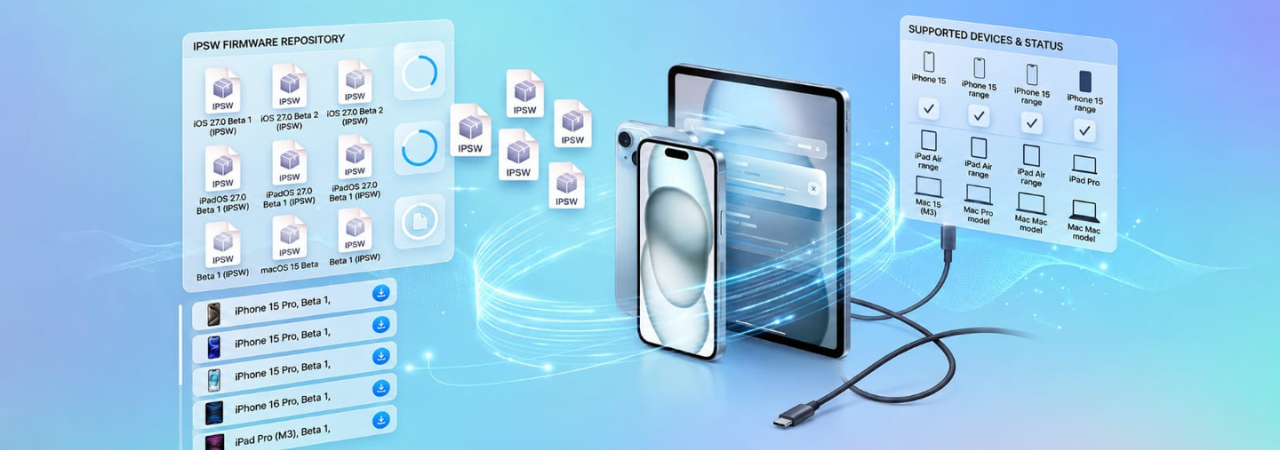
iOS 27 Beta IPSW — Download Links & Supported Devices
iOS 27 is currently in beta, with new builds shipping regularly ahead of its expected September release. The public beta has been available since mid-July. This page is the central hub for iOS 27 IPSW downloads: where to get the files, which devices are supported, and how to use the IPSW for a clean install or DFU restore.
Direct Answer: iOS 27 beta IPSW files are hosted on IPSW.io. Navigate to the iPhone firmware page, select your device model, and download the iOS 27 beta build. These files can be used to restore your iPhone via Finder (Mac) or Apple Devices/iTunes (Windows) while the build is signed. Apple signs only the newest beta build, and each window closes quickly — check the live signing status before you download.
iOS 27 Beta Status
| Detail | Value |
|---|---|
| Announced | June 8, 2026 (WWDC) |
| Public beta available since | Mid-July 2026 |
| Expected GA release | September 2026 (alongside iPhone 18) |
| Download via | Software Update (OTA) or IPSW file |
iOS 27 Supported Devices
iOS 27 supports every iPhone model that runs iOS 26. No devices were dropped for this cycle.
| Device Family | Models Supported |
|---|---|
| iPhone 16 series | iPhone 16, 16 Plus, 16 Pro, 16 Pro Max |
| iPhone 15 series | iPhone 15, 15 Plus, 15 Pro, 15 Pro Max |
| iPhone 14 series | iPhone 14, 14 Plus, 14 Pro, 14 Pro Max |
| iPhone 13 series | iPhone 13, 13 Mini, 13 Pro, 13 Pro Max |
| iPhone 12 series | iPhone 12, 12 Mini, 12 Pro, 12 Pro Max |
| iPhone 11 series | iPhone 11, 11 Pro, 11 Pro Max |
| iPhone SE | iPhone SE (2nd generation), iPhone SE (3rd generation) |
iPhone X, iPhone XS, iPhone XR, iPhone 8, and iPhone 7 are not supported. For a full compatibility breakdown including chip generations and feature availability, see iOS 27 Supported Devices & Compatibility.
How to Download the iOS 27 Beta IPSW
IPSW files are the full firmware packages Apple uses for device restore. They are required for clean installs, DFU restores, and restoring a device that will not boot normally. Over-the-air (OTA) updates are simpler for most users — use IPSW when you need a full restore.
Step 1 — Find your iPhone model identifier
Your IPSW must match your exact device model. The easiest way to confirm: go to Settings → General → About and note your model number (e.g., MQ9R3LL/A). You can also look it up on IPSW.io's device identifier page.
Step 2 — Navigate to the firmware listing
Go to IPSW.io's iPhone firmware page. Select your device from the list. iOS 27 beta builds will be listed alongside older releases.
Step 3 — Confirm the build is still signed
Only signed builds can be installed. The signing indicator next to each build shows whether Apple is currently accepting it. Apple may close signing on older beta builds as new betas are released. To check signing status specifically for iOS 27, see iOS 27 IPSW Signing Status — What's Signed Now.
Step 4 — Download the IPSW
Click the download link for the iOS 27 build you want. IPSW files are large — typically 5–8 GB. Allow time for the download to complete before starting the restore.
Step 5 — Restore using Finder or Apple Devices
- Back up your iPhone before restoring.
- Connect your iPhone to your Mac or PC.
- Open Finder (Mac) or Apple Devices / iTunes (Windows).
- Select your iPhone.
- Hold Option (Mac) or Shift (Windows) and click Restore iPhone.
- Select the IPSW file you downloaded.
- Confirm the restore. This will erase your device and install the selected build.
OTA vs. IPSW — Which Should You Use?
| Method | Use when | Erases device? |
|---|---|---|
| OTA (Software Update) | Normal update, device is working, enrolled in beta | No |
| IPSW restore | Device won't boot, full clean install needed, DFU mode required | Yes |
For most users joining the iOS 27 beta, the OTA path through Settings → General → Software Update → Beta Updates is the right choice. See iOS Beta Without a Profile: How Enrollment Works Now for the full OTA enrollment guide.
Downgrading from iOS 27
If you want to return to iOS 26 from the iOS 27 beta, you need a full IPSW restore, and iOS 26 must still be signed by Apple. Apple typically closes signing on the previous major version within weeks of the new version going GA. If you are considering a downgrade, act before the iOS 27 GA release in September 2026. For the full process, see How to Downgrade iOS 27 to iOS 26.
What to Do If the iOS 27 Update Fails
If the iOS 27 update gets stuck or fails during installation, start with these steps: check available storage (you need at least 6 GB free), restart and try again via Software Update, and if the device becomes unresponsive, use an IPSW restore. For a full troubleshooting guide, see iOS 27 Update Failed or Stuck — How to Fix It.
FAQ
What is the current iOS 27 beta build number?
Apple ships new iOS 27 betas regularly, so the current build changes often. check the live signing status for the build being signed right now.
Where can I download the iOS 27 IPSW?
IPSW files for iOS 27 are listed on the IPSW.io iPhone firmware page. Select your device model and choose the iOS 27 build.
Can I install iOS 27 beta without an IPSW file?
Yes. Most users install the iOS 27 beta through Settings → General → Software Update → Beta Updates. No IPSW file is required for OTA installation.
Is iOS 27 available for iPhone X?
No. iOS 27 requires iPhone 11 or later, or iPhone SE 2nd or 3rd generation. iPhone X, XS, XR, 8, and 7 are not supported.
How large is the iOS 27 IPSW file?
iOS 27 IPSW files are approximately 5–8 GB depending on the device model. Ensure you have sufficient storage and a stable connection before downloading.
What happens if I try to install an unsigned iOS 27 build?
The restore will fail. Apple's servers reject restore requests for unsigned builds. Always confirm the build is signed at IPSW.io before attempting a restore.
Can I use the iOS 27 IPSW to restore a device that won't turn on?
Yes, but you may need to put the device in DFU mode first. Connect it to your Mac or PC, put it in DFU mode, then use Finder or Apple Devices to restore with the IPSW file.
Will the iOS 27 IPSW file work for both developer and public beta?
Yes. The developer beta and public beta use the same underlying IPSW file — the distinction is in how you enroll, not the firmware itself.


