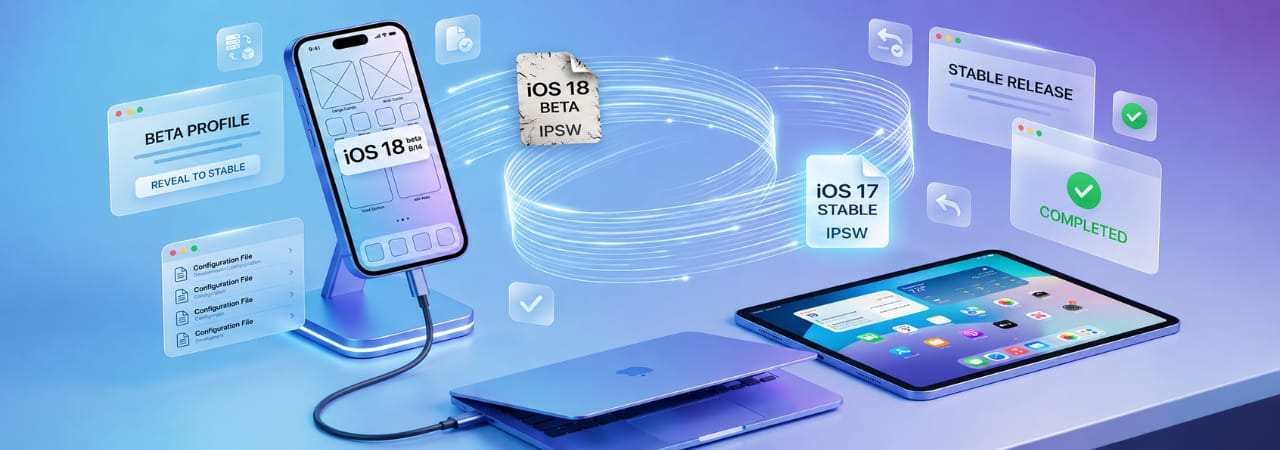
How to Leave the iOS Beta and Go Back to Stable
Leaving the iOS beta is straightforward, but the outcome depends on one thing: whether the stable release has caught up to the beta version you are running. If it has, you can exit the beta track in Settings and wait for the next standard update. If it has not, you will need to restore your iPhone to a lower iOS version using an IPSW file — which erases your device.
This guide covers both paths: the clean exit through Settings and the full downgrade via restore.
Direct Answer: Go to Settings → General → Software Update → Beta Updates and select Off. This removes you from the beta track. Your iOS version does not change immediately — you will receive the next stable release when it ships. If you want to return to a lower iOS version right now, you need to restore your iPhone using an IPSW file, which erases the device.
Understanding What "Leaving the Beta" Actually Does
Turning off the beta track in Settings does not roll back your iOS version. It tells Software Update to stop pulling builds from the beta channel. From that point forward, you will only receive stable public releases.
What happens next depends on timing:
- If the stable release matches or exceeds your beta version — the next update will arrive through the standard channel and install normally. This is the most common situation once iOS approaches general availability.
- If the stable release is behind your beta version — you are stranded on a beta build until the stable release catches up. You will not receive any updates until the public release reaches your build number. The only way off immediately is a full IPSW restore.
Example: if you are running iOS 27 Beta 4 and the current stable release is iOS 26.4, turning off Beta Updates leaves you on iOS 27 Beta 4 with no available update until iOS 27 ships publicly.
Method 1 — Exit the Beta Track in Settings (No Erase)
Use this method when you want to stop receiving beta updates and are willing to wait for stable to catch up, or when iOS 27 has already released publicly.
Steps
- Open Settings.
- Tap General.
- Tap Software Update.
- Tap Beta Updates.
- Select Off.
That is all. You are now on the standard release track. Software Update will show the next stable release when it becomes available. No data is lost, no restart is required, and nothing changes about your current iOS version.
When this works well
- You are close to the iOS public release window and can wait a few weeks
- The beta you are on is stable enough that waiting is not a problem
- You enrolled in the public beta and do not need to be on the absolute latest build
When this is not enough
- You need to be on the stable release right now (for work, app compatibility, or carrier support)
- The beta version you are running has a critical bug affecting daily use
- You want to return to iOS 26 while iOS 27 is still in beta
Method 2 — Full IPSW Restore (Erases Device)
If you need to return to the stable release immediately, or downgrade to a lower iOS version (for example, iOS 26 while you are currently on iOS 27 beta), you must restore your iPhone using an IPSW file. This process erases all data on the device.
Before you begin
- Back up your iPhone to iCloud or your Mac/PC. A restore will erase everything.
- Make sure the iOS version you want to install is still signed by Apple. Apple stops signing older versions within days to weeks after a new release — once signing closes, you cannot restore to that version. Check current signing status at IPSW.io.
- Download the correct IPSW file for your exact iPhone model from IPSW.io's iPhone firmware page.
Steps — Restore via Finder (Mac) or Apple Devices / iTunes (Windows)
- Connect your iPhone to your Mac or PC with a cable.
- Open Finder (Mac) or Apple Devices / iTunes (Windows).
- Select your iPhone in the sidebar.
- Hold Option (Mac) or Shift (Windows) and click Restore iPhone…
- Select the IPSW file you downloaded.
- Confirm. The restore will erase your device and install the selected iOS version.
- After restore, set up your iPhone and restore from your backup.
For a full walkthrough including DFU mode and troubleshooting, see How to Downgrade iOS.
Checking Whether the iOS Version You Want Is Still Signed
Apple uses a signing window to control which iOS versions can be installed. Once a version is unsigned, the restore process will fail even if you have the correct IPSW file. This is especially relevant when trying to go back to iOS 26 from the iOS 27 beta — Apple typically stops signing iOS 26 builds shortly after iOS 27 ships publicly.
To check signing status: visit IPSW.io's iPhone firmware page, select your device, and look at the signed/unsigned indicator next to each build. Only signed builds can be restored to.
What About the Old Beta Profile?
If you enrolled in the beta before iOS 16.4 (February 2023), you may have installed a configuration profile to join the beta. That profile might still appear in Settings → General → VPN & Device Management. You can remove it — it no longer serves any function under the account-based enrollment system. Removing it does not change your iOS version or beta track.
To check how the current enrollment system works, see iOS Beta Without a Profile: How Enrollment Works Now.
Troubleshooting
Software Update is not showing any update after I turned off Beta Updates
You are likely on a beta build that is newer than the current stable release. You will not receive an update until the stable release matches or exceeds your beta build. Either wait, or perform an IPSW restore.
The restore fails with "iPhone software update server could not be contacted"
The iOS version you are trying to restore to is no longer signed. Check IPSW.io for the current signing status and select a build that is still open.
I cannot find Beta Updates in Settings
Your device may be managed by an MDM profile that restricts the Beta Updates menu. Check with your employer or school IT department. Alternatively, your Apple Account may not have an active developer or public beta enrollment — visit beta.apple.com to confirm.
The restore is stuck at the Apple logo
This is usually a partial restore. Put your iPhone in DFU mode and try the restore again. See iPhone Boot Loop Fix: Recover Without Losing Data for DFU mode instructions.
FAQ
Will turning off Beta Updates immediately remove the beta from my iPhone?
No. Turning off Beta Updates only stops future beta builds from being delivered. Your current iOS version does not change. The next update you receive will be the next stable public release.
Can I go back to iOS 26 from iOS 27 beta?
Yes, but only if iOS 26 is still being signed by Apple. You cannot downgrade by changing a setting — you need to perform a full IPSW restore, which erases your device. Check signing status at IPSW.io before attempting this.
Do I lose my data if I just turn off Beta Updates?
No. Changing your beta track setting in Settings does not affect your data. Data loss only happens during a full IPSW restore.
How long does it take to get the stable release after leaving the beta?
It depends on where you are in the beta cycle. If the stable release is imminent (a few weeks away), it arrives on release day. If you are in early beta, you may wait months. There is no way to accelerate this without doing a restore.
Can I switch from developer beta to public beta without erasing?
Yes. Go to Beta Updates and select iOS Public Beta instead of Developer Beta. This is an in-place switch with no data loss. The next beta update will come from the public track.
What happens to my apps and data when I leave the beta?
Nothing changes immediately. Apps built for the beta may behave unexpectedly on an older stable release if you do a full downgrade restore, but simply switching off the beta track in Settings leaves everything intact.
Is there a way to leave the beta without losing data if I need the stable version now?
Only if the stable release has already been released and matches or exceeds your beta version — in that case, turn off Beta Updates and install the stable release normally. If the stable release has not caught up yet, there is no erase-free path back to a lower version.
Will Apple automatically remove me from the beta program?
No. You remain enrolled until you manually turn off Beta Updates in Settings or until Apple ends the beta cycle for that iOS version.


