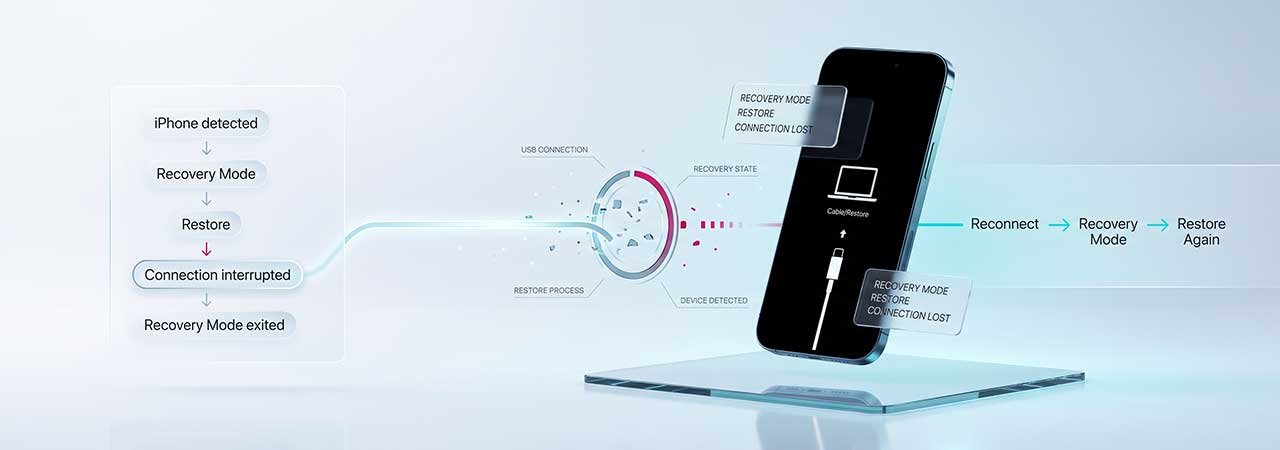
You put your iPhone into recovery mode, clicked Restore in Finder (or iTunes, or the Apple Devices app on Windows), and then — while the progress bar was still moving or the download was still running — the iPhone left recovery mode on its own. It is now showing the Apple logo, or the lock screen, or the connect-to-computer screen again. Finder or iTunes may say "Waiting for iPhone."
Nothing has gone wrong with your iPhone. This is a timer built into recovery mode reaching its limit before the download was done.
Recovery mode has a 15-minute window
When your iPhone enters recovery mode, Finder, iTunes, or the Apple Devices app starts downloading the IPSW firmware file in the background on your computer. Recovery mode holds the device while that download runs — but only for around 15 minutes. If the download is still in progress when the timer expires, the device exits recovery mode automatically and reboots.
Apple documents this behaviour directly: “If the download takes more than 15 minutes, your device might exit the ‘Connect to computer’ screen.” (support.apple.com/en-us/118106)
The timer is intentional. A device left in recovery mode indefinitely on a slow connection would be left in a vulnerable state with no way to know whether the download had failed or stalled. The 15-minute limit is a safety valve.
The download is still running on your computer
After your iPhone leaves recovery mode, the IPSW DOWNLOAD continues on your computer. Apple’s guidance is to let it finish, then put the iPhone back into recovery mode and repeat the restore step. At that point, Finder or iTunes will use the already-downloaded file rather than starting from scratch.
This gets you through the problem — but it puts you back in the same position for the next phase. If any part of the process from here takes longer than the new timer allows, you will be in the same loop.
The fix: download the IPSW before you start
If the IPSW file is already on your computer when you begin the restore, there is nothing to download. The flash phase — the part where the firmware is actually written to your device — is fast, and the timer will not be a factor.
How to do it:
- Go to the IPSW.io device page for your iPhone and download the signed IPSW for the version you want. Confirm the signing status before downloading — only currently signed versions can be used for a standard restore.
- Put your iPhone into recovery mode (hold the side or home button and connect to your computer — see how to enter recovery mode for the steps for your model).
- On a Mac, hold Option and click Restore iPhone in Finder. On Windows, hold Shift and click Restore iPhone in iTunes or the Apple Devices app.
- Navigate to and select the IPSW file you downloaded.
- The restore begins immediately. No download phase, no timer risk.
DFU mode has the same problem
DFU (Device Firmware Update) mode can time out in the same way during the software extraction phase. There are documented cases of an iPhone exiting DFU mode after roughly a minute because the download was not yet complete when the flash phase needed to start. The same fix applies: download the IPSW first, then start the restore in DFU mode using the same Shift or Option click method above.
DFU mode is a lower-level restore path that bypasses the operating system and is sometimes necessary when recovery mode does not work. See how to enter DFU mode for the button sequence on your model.
“Waiting for iPhone” — a related but different problem
There is a second hang that produces a similar symptom. During a restore, after the initial flash phase starts, your iPhone reboots once as part of the process. If the USB connection is unstable — you are using a hub, a worn cable, or a port that loses power momentarily — the device may not reconnect to the computer after that reboot. Finder or iTunes then shows “Waiting for iPhone” and holds there indefinitely.
This is different from the download timeout:
- Download timeout: happens early, while the download progress bar is still moving. The iPhone exits recovery mode and reboots cleanly. No error message appears in most cases.
- “Waiting for iPhone”: happens during or after the flash phase. The iPhone has started rebooting as part of the restore itself, but the computer cannot find it again. The USB connection dropped during the reboot.
For the USB drop problem: connect directly to a port on the computer rather than through a hub, use an Apple cable or a cable you have confirmed works for data (not just charging), and if using an adapter, try a direct connection instead. These steps are confirmed to resolve the hang in the large majority of cases. (iFixit discussion)
Quick reference
| Symptom | Most likely cause | Fix |
|---|---|---|
| iPhone left recovery mode while download was still running | 15-minute timer reached before download finished | Download IPSW first; restore from file |
| Finder or iTunes shows “Waiting for iPhone” mid-restore | USB connection dropped when device rebooted during flash | Direct port, no hub, confirmed data cable |
| Both symptoms on the same restore attempt | Slow connection and marginal USB | Both fixes above |


