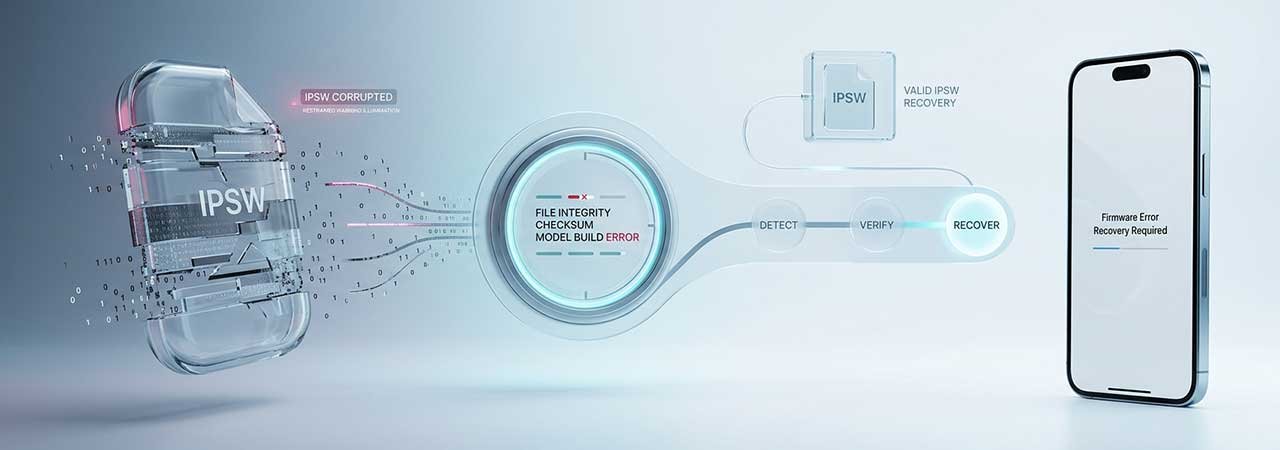
You started a restore, it failed partway, and now you are looking at a message saying the firmware is corrupt — with a device that will not boot normally. This page is written for that moment. The short version: a corrupt-firmware message almost never means your device is damaged, and in most cases the device is still recoverable from where it is now.
Do not unplug the device and walk away. A device sitting in Recovery or DFU mode is in a safe, resumable state. It looks alarming because the screen is black or showing a cable, but nothing is deteriorating while it waits.
Direct Answer: “The iPhone could not be restored. The firmware file is corrupt” usually means the IPSW on your computer is incomplete or damaged — not that the device is broken. Delete the file, download it again, verify it, and restore again. The device stays recoverable in Recovery or DFU mode while you do.
What the Message Actually Means
The restore process checks the firmware file before and during installation. If the file it reads does not match what it expects — wrong length, failed integrity check, truncated download — it stops rather than writing bad firmware to the device. The error is the safety mechanism working, not evidence of hardware failure.
That is worth internalising when you are mid-panic: the restore stopped because it refused to install something broken. Your device is in an incomplete state, but an incomplete state you can restart from.
Why the File Ends Up Corrupt
- Interrupted download. An IPSW is several gigabytes. A dropped connection or a sleeping computer part-way through leaves a file that looks complete but is not.
- Browser interference. Some browsers, Safari in particular, unpack or rename firmware downloads. A file that has been expanded and re-compressed is no longer a valid IPSW — see the flash file explainer for that specific case.
- Disk problems on the computer. A full disk during download, or a failing drive, can silently truncate the file.
- The wrong file for the device. Sometimes reported as corrupt rather than incompatible. Confirm your exact identifier with identify your iPhone model.
- An unsigned build. If Apple has stopped signing that version, the restore will fail — occasionally with misleading wording. Check with how to check IPSW signing status.
Recovering From Here, In Order
- Leave the device connected and in Recovery or DFU mode. Do not force it off, and do not keep re-triggering the restore with the same file — it will fail the same way.
- Delete the IPSW you were using. Do not reuse it. A file that failed verification once will fail again.
- Download a fresh copy for your exact device identifier, from a stable connection, and let it finish completely before touching anything.
- Verify it before restoring. Comparing the checksum takes a minute and tells you whether the new download is sound — see verify an IPSW checksum. This is the step that prevents a second failed attempt.
- Restore again using Finder, the Apple Devices app, or iTunes, holding Option (Mac) or Shift (Windows) and selecting the new file. For the mechanics, see restoring with Finder, iTunes or Apple Devices.
- If it fails again in the same place, change one variable at a time: a different USB cable, a different port directly on the computer rather than a hub, then a different computer entirely.
If the Device Will Not Stay in Recovery Mode
A device that keeps dropping out of Recovery mid-restore is usually a connection problem rather than a firmware one. Use a known-good cable, avoid hubs and docks, and try a port on the machine itself. If it still will not hold a connection, put it into DFU mode instead, which is a lower-level state — see DFU mode on iPhone and iPhone recovery mode for how to enter each.
When It Is Not the File
If a freshly downloaded, checksum-verified IPSW fails on more than one computer with more than one cable, the explanation has moved away from the firmware file. Repeated failures at the same point — particularly alongside numeric errors like 4013 or 4014 — point at the hardware rather than the download. Our guides to errors 4013 and 4014 and iPhone restore error codes cover that territory. At that stage a service appointment is the sensible next step, and you have lost nothing by trying the software route first.
You can browse firmware for every model from the iPhone firmware page.
FAQ
Does a corrupt firmware error mean my iPhone is bricked?
Almost never. The message usually refers to the IPSW file on your computer, not the device. A device left in Recovery or DFU mode remains recoverable, and the usual fix is to download the firmware again and retry.
Can I fix a corrupt IPSW file?
No — delete it and download it again. There is no reliable way to repair a partial or damaged firmware file, and re-compressing an expanded one does not produce a valid IPSW.
Why did my firmware download get corrupted?
Most often an interrupted or incomplete download, a browser that unpacked the file automatically, or a full or failing disk on the computer. Verifying the checksum after downloading catches all three before you restore.
Should I unplug my iPhone if the restore failed?
No. Leave it connected and in Recovery or DFU mode while you download a fresh file. Nothing degrades while it waits there, and staying in that state saves you re-entering it.
What if the same error happens with a new download?
Change one thing at a time: cable, then port (directly on the computer, not a hub), then a different computer. If a verified file still fails across all of those, treat it as a possible hardware fault and book a service appointment.
Is a corrupt firmware error the same as an unsigned IPSW?
No, though they can look similar. A corrupt file fails an integrity check; an unsigned build is rejected by Apple’s signing servers even when the file is perfect. Check signing status separately before assuming the download is at fault.


