Where "Flash File" Comes From
On Android and older feature phones, "flashing" means writing a raw firmware image directly to the device's storage, usually with a third-party tool, sometimes from an unofficial source. The term stuck around because Android OEMs, forums, and repair shops use it constantly. Search volume for "iphone flash file" reflects Android or cross-platform users applying that habit to iPhone, or repair technicians using the generic industry term for any device's core firmware.
What Apple Calls It Instead
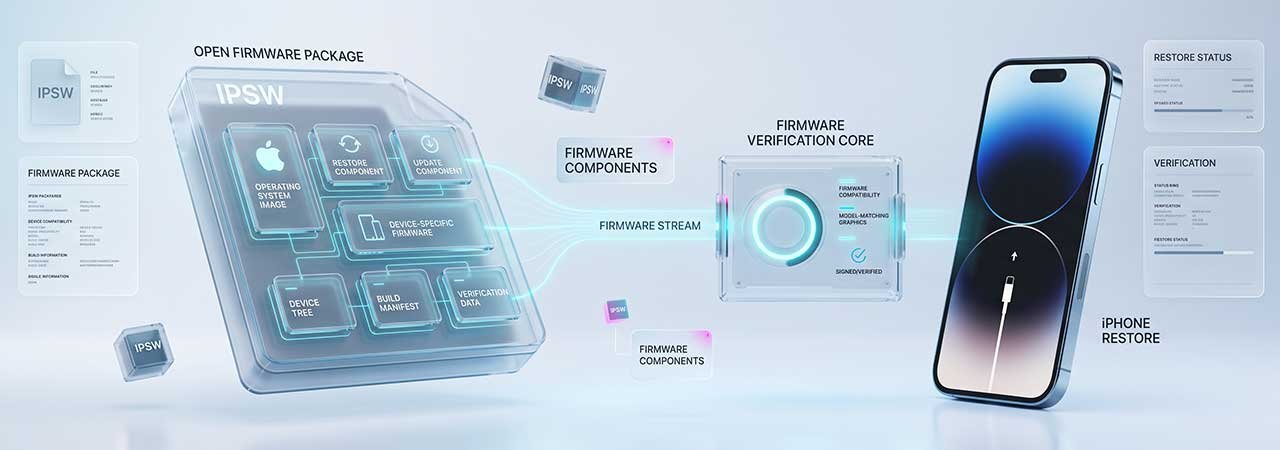
Apple's equivalent is the IPSW file — short for iPhone Software (the extension has stuck even though the format now covers iPad, Apple TV, Apple Watch, and Vision Pro too). An IPSW is a signed, Apple-issued disk image containing a full copy of iOS or iPadOS for a specific device. You install it through Finder, the Apple Devices app on Windows, or (on older macOS) iTunes — not a third-party flashing tool. People arrive at this file under several other names — an iPhone ROM, an iPhone ISO file, or an iOS ZIP download. All three describe the same thing: the IPSW is the only firmware format Apple issues for iPhone and iPad.
How iPhone "Flashing" Actually Differs from Android
| Android Flash File | iPhone IPSW |
|---|---|
| Often sourced from third-party firmware archives or forums | Downloaded directly from Apple's own signing servers |
| Written with tools like Odin, SP Flash Tool, or fastboot/ADB | Installed only through Finder, Apple Devices, or iTunes |
| Can usually be installed regardless of OS version or age | Apple must be actively signing that exact build, or the install is rejected |
| Bricking risk comes mainly from wrong partition/device match | Bricking risk is low if the IPSW matches your exact model identifier |
The signing requirement is the biggest practical difference. Even with a perfectly valid IPSW, Apple's servers must currently authorize that specific build for your specific device, or a standard restore will fail with a signing error. There is no direct Android equivalent to this step.
Where to Get the Right File for Your iPhone
Every iPhone model has its own set of IPSW files, tied to its exact device identifier (something like "iPhone15,4"), not just its marketing name. Start from our full iPhone model directory, or jump straight to your generation's guide:
- iPhone 16 Firmware
- iPhone 15 Firmware
- iPhone 14 Firmware
- iPhone 13 Firmware
- iPhone 12 Firmware
- iPhone 11 Firmware
- iPhone X, XR & XS Firmware
- iPhone 8 Firmware
- iPhone 7 Firmware
- iPhone 6 & 6s Firmware
- iPhone SE Firmware
- iPhone 14 Flash File — device-specific identifiers and what Android flashing habits get wrong
- iPhone 13 Flash File — device-specific identifiers and what Android flashing habits get wrong
- iPhone 11 Flash File — device-specific identifiers and what Android flashing habits get wrong
- iPhone X Flash File — device-specific identifiers and what Android flashing habits get wrong
- iPhone 8 Flash File — device-specific identifiers and what Android flashing habits get wrong
- iPhone 7 Flash File — device-specific identifiers and what Android flashing habits get wrong
- iPhone SE 2020 Flash File — the single iPhone12,8 identifier and why there is no fixed final build
Each guide covers the model identifiers for that generation and the current or final signed build you can restore to.
iPhone Flash File FAQ
Is an IPSW the same thing as a flash file?
Functionally, yes — both terms describe the firmware image used to install or reinstall an OS. IPSW is Apple's specific name for it; "flash file" is generic terminology from the Android world.
Can I flash an iPhone the way I would an Android phone?
No. iPhone installs require an Apple-signed IPSW applied through Finder, Apple Devices, or iTunes. Third-party flashing tools used for Android devices don't work on iOS.
Where do I download an iPhone flash file (IPSW)?
Through a firmware directory like ipsw.io, which links to Apple's own signing servers, or directly from Apple's developer/beta sites for current builds.
Why does my iPhone reject the file I downloaded?
Almost always a signing mismatch: either the build isn't currently signed for your device, or the file doesn't match your exact model identifier.
Do I need a flash file to update my iPhone normally?
No. Routine updates happen over the air or through automatic Finder/iTunes updates. You only need a specific IPSW for a manual restore, downgrade, or recovery-mode fix.
Is an iPhone ROM, ISO or ZIP file the same as an IPSW?
Yes — those are all informal names for the same file. "ROM" comes from Android and older phones, "ISO" from desktop operating systems distributed as disc images, and some sites label downloads as a ZIP. Apple only ever ships iPhone and iPad firmware as an IPSW, so if you are looking for an iPhone ISO or an iOS ZIP, the IPSW for your exact model is the file you need. Do not rename or unzip it — Finder, the Apple Devices app and iTunes expect the .ipsw file exactly as downloaded.
My download saved as a .zip and Finder or iTunes will not accept it. What now?
Rename it back to .ipsw and it will work. Safari in particular treats the file as an archive and either renames it or unpacks it on download, which is why it stops being selectable in the restore dialog. Turn off Open “safe” files after downloading in Safari’s settings before you download again, or right-click the link and choose Download Linked File to get the original. If Safari already expanded it into a folder, delete that folder and download again — re-zipping the contents does not reliably reproduce a valid IPSW. Make sure file extensions are visible before renaming, or you may end up with a file called something like firmware.ipsw.zip.
If you searched for an "iPhone flash file," you were probably looking for the wrong term. Flashing is Android and feature-phone language, carried over from a completely different update model. On iPhone, the file you actually need is called an IPSW, and how you use it works differently in a few important ways.


